Today we will be taking a look at the NSX-T Identity Firewall (IDFW) feature. Specifically, we will focus on Active Directory SIDs, how the IDFW service obtains them and ultimately, how IDFW rules must be constructed to leverage them appropriately.
Configuration
The workflow to enable Identity Firewall in NSX-T 3.1 may be found here, and is fairly comprehensive in regards to the steps required. We would also recommend checking the Identity Firewall Best Practices and Identity Firewall Supported Configurations within the same documentation.
Active Directory SIDs
You may read more about Windows Security Identifiers (SIDs) here, but for our purposes, we only need to know that they uniquely identify Active Directory (AD) users and groups. VMTools (specifically, the NSX File Introspection driver and NSX Network Introspection driver), in conjunction with Identity Firewall service, captures the SID of a logged in user. This user account SID is used to identify AD groups to which this user account belongs via Active Directory communication established during the initial IDFW configuration.
We will get into the specifics of IDFW rules and their uses later in the post, but let’s take a look at the dvfilter/vNIC firewall of a VDI VM where a user has logged in and accessing the network . Circled in red dashes below, we can see the SID of the user that has logged into the VDI VM. Below this, contained in curly brackets, we see all of the SIDs to which this user account SID is related.
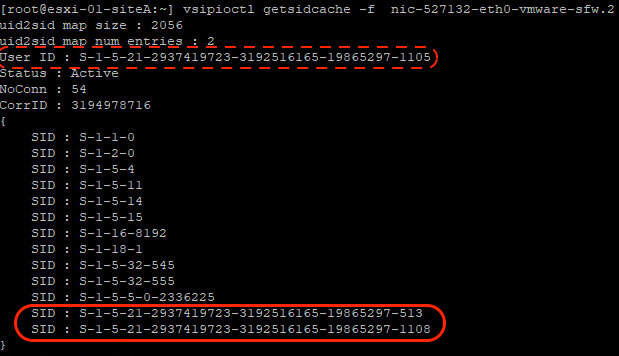
Circled in a solid red line above, we find SIDs that are likely AD groups (specifically, Domain Security Groups) based on the length of the SID. We can identify which AD group is represented by a given SID a number of ways; below, you can see we utilize the ‘wmic’ command to view the SIDs of all the groups on a domain controller.
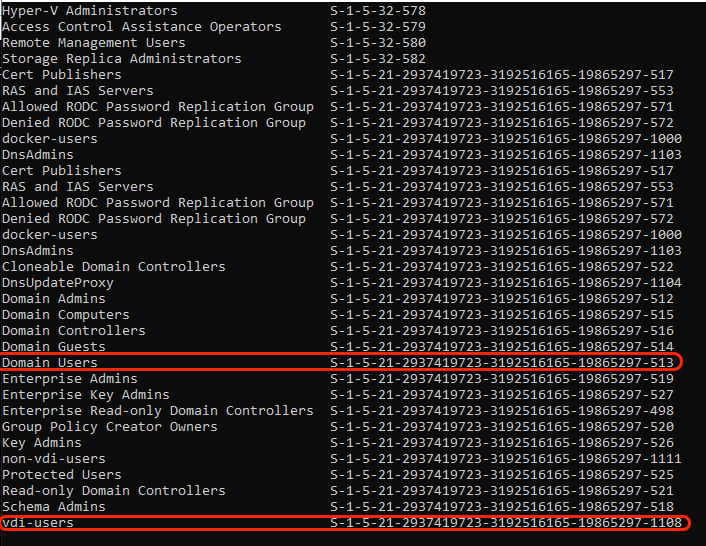
Here we have circled the AD group SIDs that were identified in the previous example. The SID ending in ‘513’ is the ‘Domain Users’ AD group, while ‘1108’ is the SID for a group named ‘vdi-users’. At this point, we can safely say that the user account SID ending in ‘1105’ is a member of both the ‘Domain Users’ and ‘vdi-users’ AD group.
If we wish to identify the name of the user account SID, we may do so leveraging the ‘wmic’ command. Below, we see that the user account SID has a name of ‘idfw-user’.

Now that we have a baseline of what an SID is for our purposes, let’s begin taking a look at how this data is used in the IDFW feature of NSX-T.
Utilizing IDFW rules
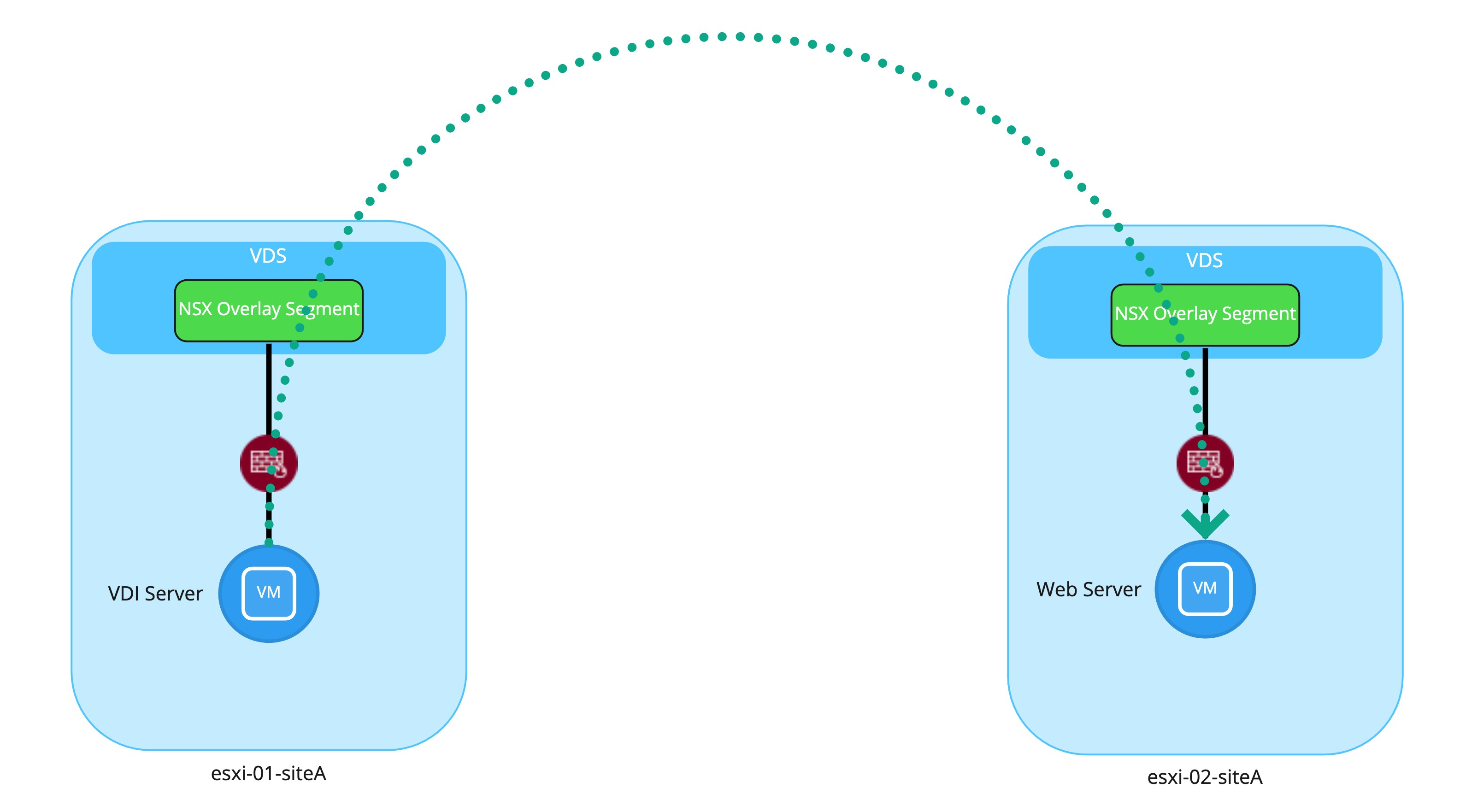
Let’s start with our desired intent. On the left is ESXI server ‘esxi-01-siteA‘, which hosts our VDI Server VM. This VDI server will be accessed by users via Remote Desktop Protocol (RDP), and once logged in, users initiate a HTTP request to a Web Server VM, which resides on ‘esxi-02-siteA‘.
Before continuing on, it’s worth noting while the depictions demonstrate the VMs attached to NSX Overlay Segments, the IDFW topic discussed today is just as applicable if the VMs were instead attached to NSX VLAN segments. As such, our key focus today is on the vNIC firewalls / dvfilters, depicted in red below.
To facilitate this traffic flow, below we see a IDFW policy, consisting of two rules. Please note this firewall policy is built upon an ‘Allowlist’ framework, where a default ‘Deny‘ rule (not pictured) resides at the bottom of the rule base. As such, all access must explicitly be allowed by discrete firewall rules in the policy.

Rule 2024 (“Access to VDI Servers“) exists to allow users access to the VDI server via RDP. That is, before an individual can do any work from a virtual desktop, they must first have the ability to reach the VDI server. In our environment, the destination group (“VDI-Servers“) is comprised of a single Windows VM, and membership into this group is determined via tag.
Once a user has accessed the VDI server via RDP and logged in, any traffic initiated from this server can now be evaluated. Rule 2026 (“IDFW – VDI Users to Web Servers”) leverages a source group named “AD-vdi-users“, and the only member of this group is the AD Group “vdi-users“, as visible below.
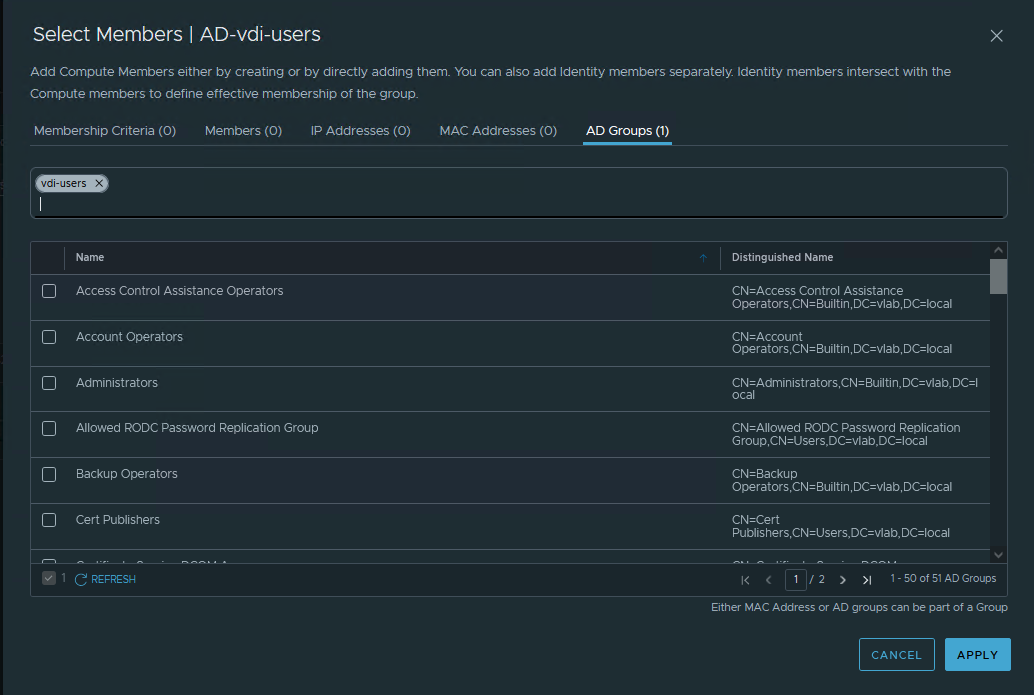
With rule 2026 in place, if the AD user that has logged into the VDI server is in the “vdi-users” AD group, then traffic outbound from this VDI server to any member of the “Web Servers” NSX-T Group via http/https will be allowed.
Here is where we run into an extremely important piece of data regarding IDFW rules in NSX-T: NSX-T groups containing AD groups may only be used as the source of distributed firewall rules. This is because SIDs learned via VMTools are local to the host where they are obtained and are not replicated to other NSX-T backed ESXi hosts. Let’s take a look at the SIDs captured on each ESXi server in our environment:
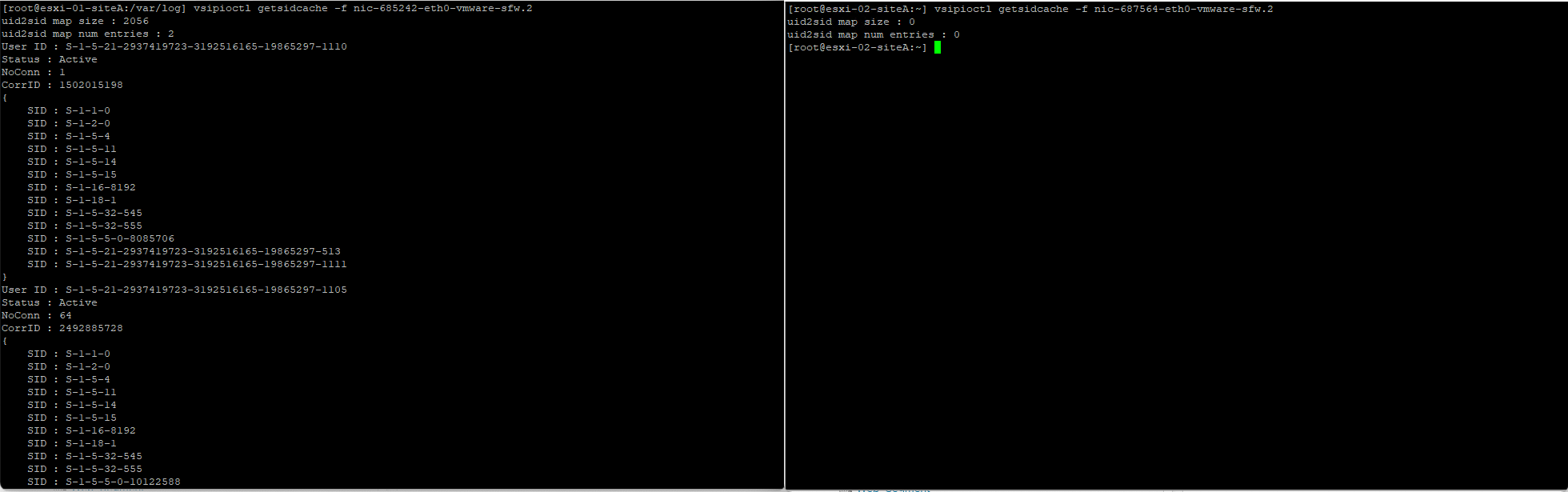
ESXI server ‘esxi-01-siteA‘ (on the left) hosts the VDI VM, while ‘esxi-02-siteA‘ (on the right) hosts the destination web server VM. By utilizing the command ‘vsipioctl getsidcache -f <filter name>‘ , we can review any SIDs captured by VMTools. As you can see, ‘esxi-01-siteA‘ has learned two SIDs , while ‘esxi-02-siteA‘ has not learned any.
How does this affect the access that rule 2026 is intended to provide? Below is a depiction of traffic initiated by a user belonging to the ‘vdi-users’ AD group on the VDI server VM to the web server VM.
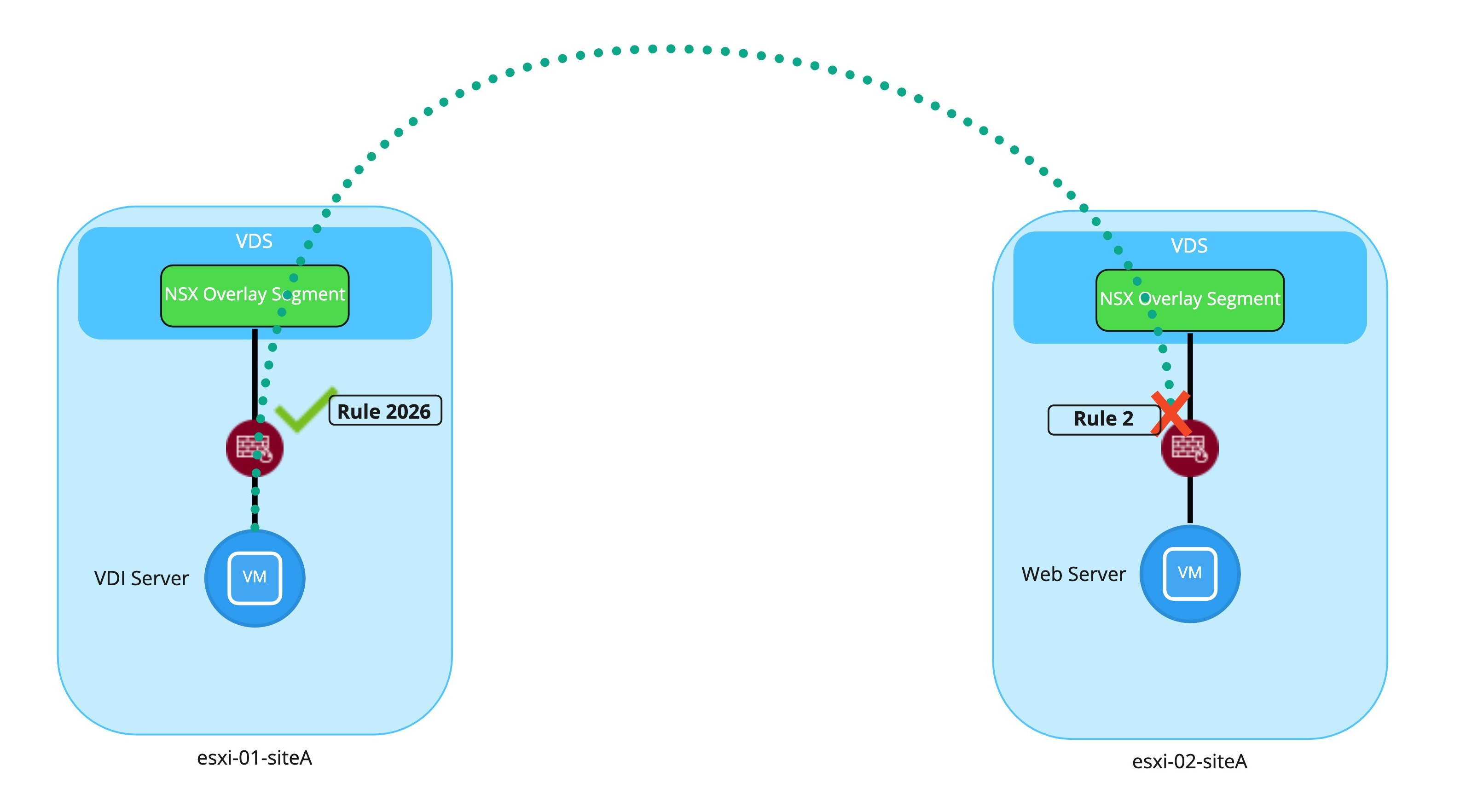
While traffic outbound from the VDI server does match rule 2026 on ‘esxi-01-siteA’, this same traffic inbound to the web server VM will not match rule 2026 on ‘esxi-02-siteA‘. This is because, as previously established, ‘esxi-02-siteA’ has no SID data of it’s own. Since rule 2026 is explicitly requires SIDs to match (as the source NSX-T group is comprised of AD groups), this traffic will bypass rule 2026 and will ultimately be dropped by the default ‘Deny‘ rule (rule id 2). As each rule is set to log traffic, we can observe this in the below comparison of the ‘dfwpktlog.log’ file on the ESXi servers.

On the left, where the VDI server VM resides on ‘esxi-01-SiteA‘, we see the Syn packet for an HTTP attempt has been successfully allowed outbound via rule 2026 (“INET match PASS 2026 OUT”). Each log entry displayed shows the source IP/port of the VDI server itself, and the destination IP/port (172.18.10.10/80) of the web server VM. At the end of each entry, the SID that was used to match against this rule is also captured (S-1-5-21-2937419723-3192516165-19865297-1108, which is the SID of the ‘vdi-users’ AD group).
On the right, where the web server VM resides, we see the inbound SYN packets are dropped by the default ‘Deny‘ rule (“INET match DROP 2 IN”). As previously stated, ‘esxi-02-siteA’ does not posses the SID data that ‘esxi-01-siteA‘ has learned from the VDI server via VMTools. Without this data, rule 2026 on any vNIC filter residing upon ‘esxi-02-siteA‘, such as the vNIC filter for the web server VM, will never match.
So, how do we fix this?
Adding a required second IDFW rule
To properly implement IDFW rules for VDI/RDSH, we require 4 items to be met:
- A rule that allows access to the VDI server itself for users to access the virtual desktop
- A rule for the VDI Server that leverages AD groups as a source
- A rule for the destination that uses the VDI server itself as the source
- Utilization of ‘Applied To’ for items 2 and 3
So far, we’ve successfully implemented the first two items in the above list, and you can click here to refer back to the existing policy. For a quick recap, rule 2024 meets item one and rule 2026 meets item two in the list above. Now, let’s take a look at how our policy should be constructed to meet the remaining items.

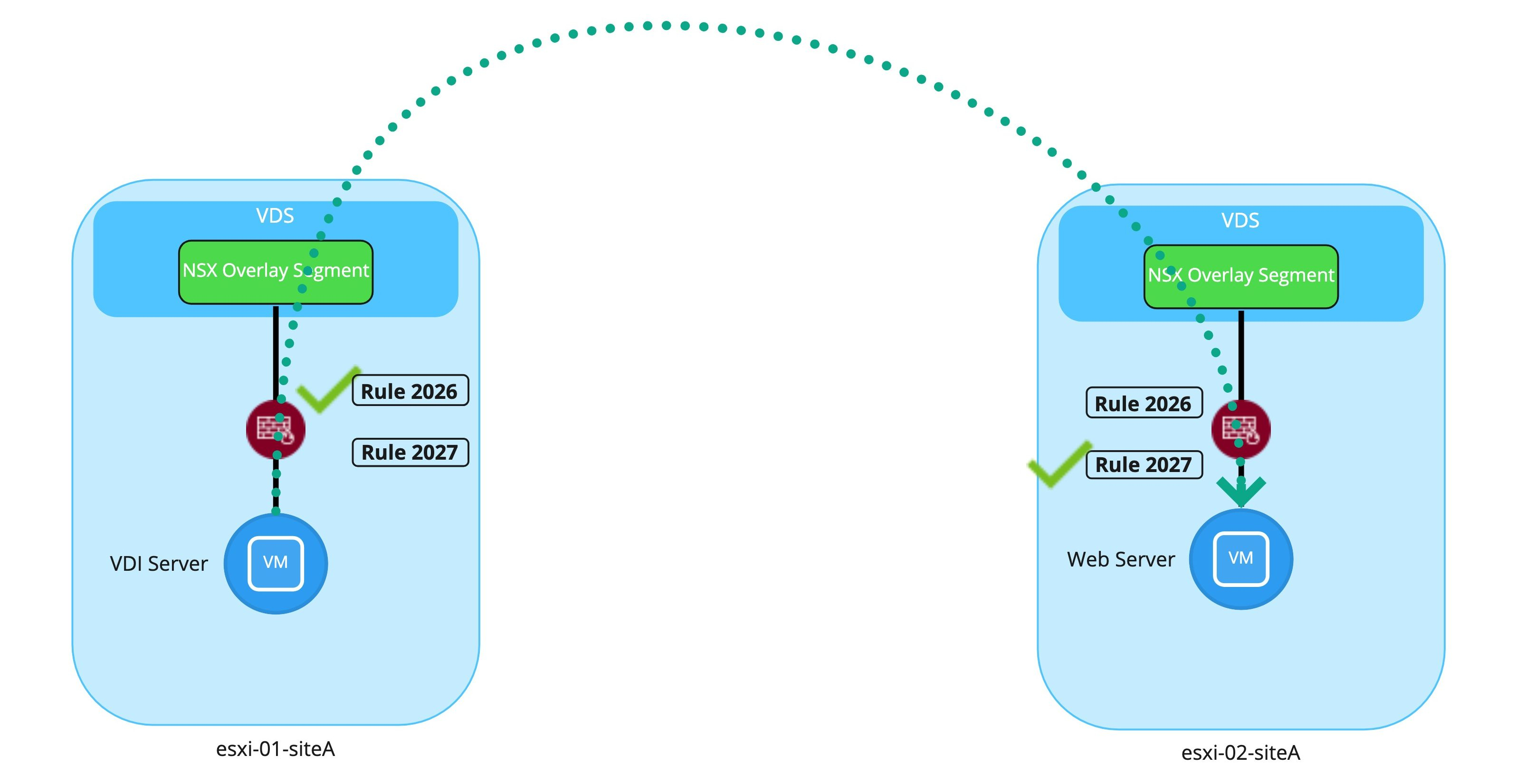
As you can see, a few changes have been made to the existing policy. To begin, rule 2027 has been created to facilitate allowing traffic to the destination web server. In fact, if you contrast rule 2026 and 2027, you’ll see the appear to be nearly identical, except each is using a different NSX-T group as a source. As we’ve previously seen, the ‘AD-vdi-users‘ group in rule 2026, as previously discovered, is comprised of membership via AD group.
‘VDI-Servers‘, the NSX-T group used as a source in 2027, is comprised of membership based upon tagging. This means that our VDI servers possess a tag that grants membership in the ‘VDI-Servers‘ group, and ultimately, the IP address of the each VM with this tag is utilized as a source IP for this rule.
The less-obvious change is that each rule is now leveraging the ‘Applied To’ field. Rules 2024 and 2026 have an ‘Applied To’ entry of ‘VDI-Servers‘, while rule 2027 possesses an ‘Applied To’ of ‘Web-Servers‘. We’ll come back later to demonstrate why utilizing ‘Applied To’ is so important for these rules, but first, let’s verify things now work as desired.

Like our previous attempt, we see the traffic from the VDI user matching rule 2026 on ‘esxi-01-siteA‘ on the left. Rule 2026 is still fully evaluating the SID of the VDI user and ensuring it is a member of the AD group as it was before.
On ‘esxi-02-siteA‘, we now see that the traffic is being successfully allowed via rule 2027 (“INET match PASS 2027 IN”). Remember, rule 2027 is simply evaluating the IP address of the VDI server in question as a source of the traffic; there is no attempt to investigate SIDs or AD group memberships. This is why the traffic from the VDI server is successfully allowed, in contrast to our previous attempt.
In short, for every IDFW rule created (meaning access is determined at the source via AD membership), you will need a corresponding rule to allow access at the destination for virtual machines. The only real exception to this second rule requirement would be if the destination is a physical server or a VM that does not reside on a NSX-T backed host.
Applied To
A full discussion of ‘Applied To’ is out of scope for this post, but for our IDFW needs, you must only understand utilizing the ‘Applied To’ field ensures that a given rule is applied only to the vNICs of virtual machines in the ‘Applied To’ group. In contrast, when utilizing the default option of “DFW” in the ‘Applied To’ field, a rule is placed on every vNIC that resides on a NSX-T prepared host.
In short, there’s a few rationales for utilizing ‘Applied To’:
- Reducing overall rule count across all vNICs
- To remove rules from a vNIC that will never match traffic there
- To prevent traffic from inappropriately matching against rules
So, let’s configure the existing working policy (seen here) to utilize “DFW” for the “Applied To” field. This means that all three rules in our policy now exist on the vNICs of the VDI server and on the destination web server. As from before, we are going to keep our focus on the traffic flow from the VDI user to the web server; the traffic flow from a physical user to the VDI server itself is not depicted.
Running our test again with a user in the AD group referenced by “AD-vdi-users“, we can see everything still works as desired. Traffic outbound from the VDI server matches rule 2026 utilizing the SID, and the same traffic inbound to the destination web server matches the 2027 rule.
So let’s conduct our same test, but this time using a different VDI user, that is not a member of the AD group referenced by “AD-vdi-users“. What we’d expect to happen here is the traffic will not match rule 2026, and will therefore fall to the default ‘Deny‘ rule, as desired.
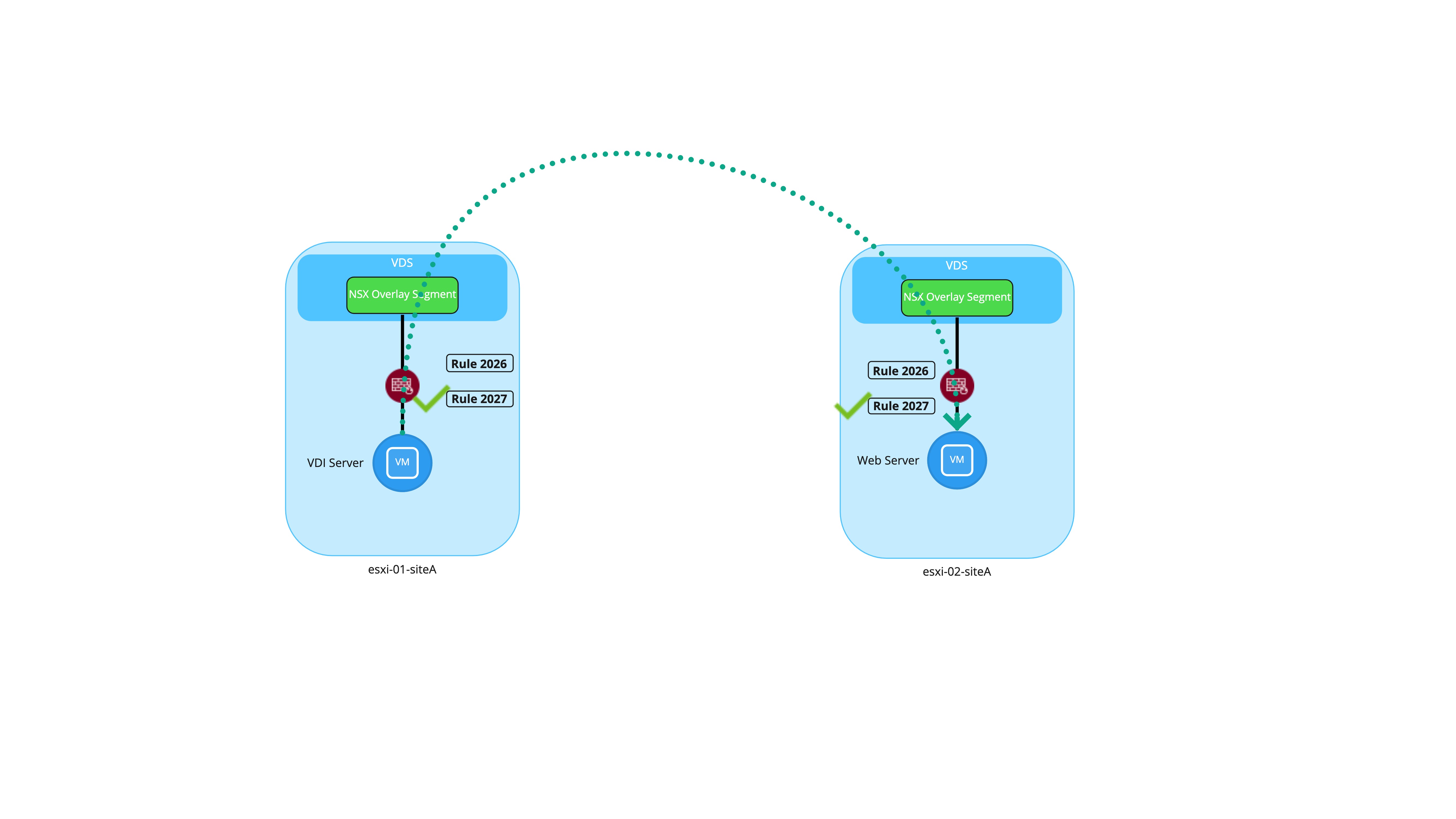
Hmm… well that’s unexpected. The communication still worked. While the traffic does not match rule 2026 on ‘esxi-01-siteA’, it does match rule 2027, which is simply allowing this traffic based on the IP address of the VDI server itself. With this configuration, a user will either match rule 2026 first (if in the proper AD group) or rule 2027 (which doesn’t inspect AD group membership at all). Obviously, this is not what we intended.
This is why we leverage ‘Applied To’. By doing so properly, we ensure that rules created for a given scenario (such as rule 2027) do not grant unintended access. With “Applied-To” configured properly, as observed below, rule 2026 only lives on the vNIC firewall for the VDI server, while rule 2027 resides only on the web server’s vNIC firewall.
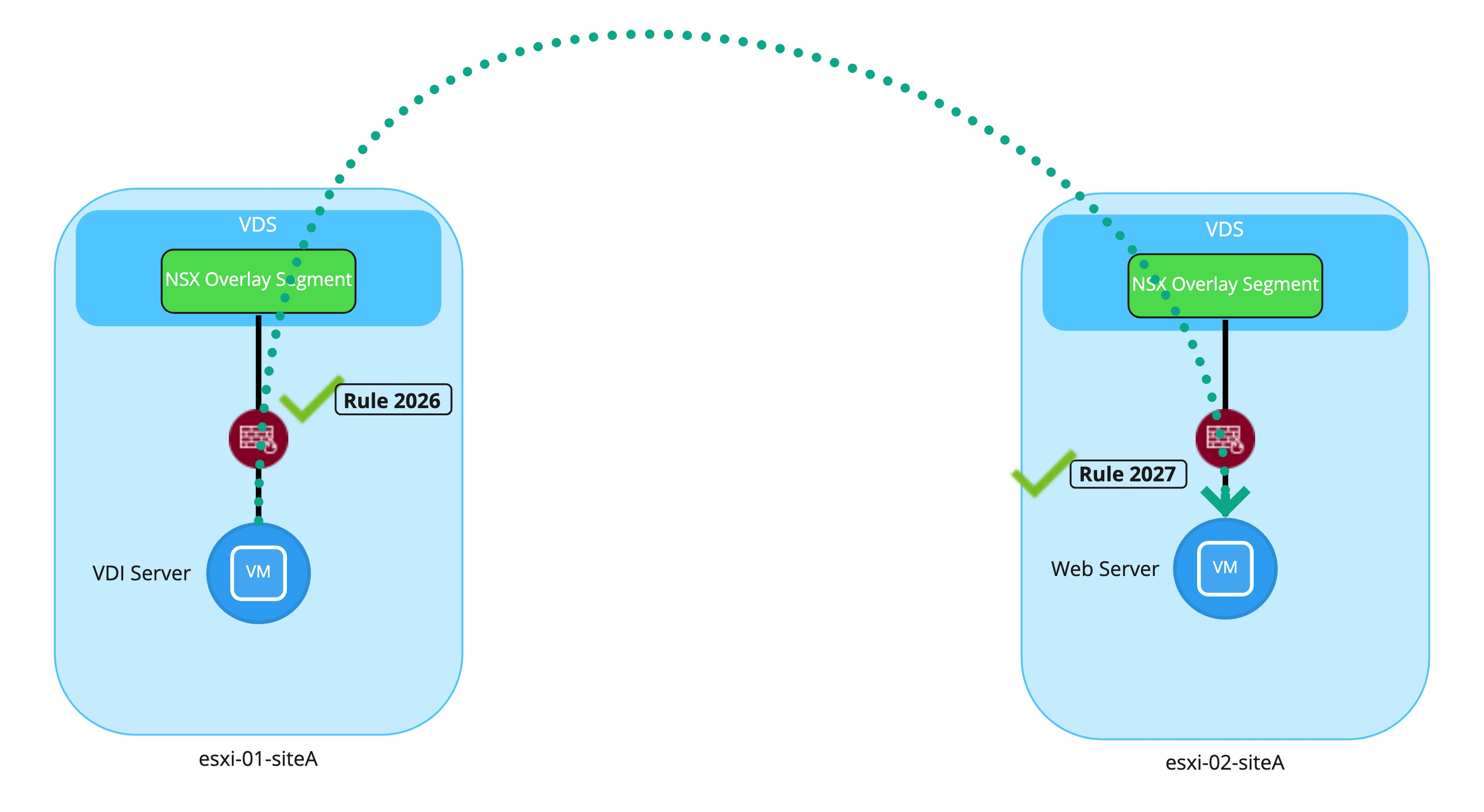
With this configuration, members of the “vdi-users” AD group match rule 2026 when destined for the web server via HTTP. Users not in this AD group bypass this rule, and are dropped by the default ‘Deny‘ rule. Rule 2027 allows traffic from the VDI server inbound; as it no longer resides on the VDI Server vNIC firewall, it cannot inadvertently allow access outbound as it did previously.
For any NSX-T deployment, we always recommend utilizing ‘Applied To’ for rules where appropriate. At a minimum, this provides data plane efficiencies, as rules that would never match on a given vNIC are removed, reducing the overall amount of rule processing. As observed above, ‘Applied To’ can also yield additional benefits, such as limiting the scope of rules to prevent unwanted/unintended consequences.
Wrap up
In closing, a few key items from the above are :
- Presuming you are using an ‘Allowlist’ methodology, a DFW rule allowing VDI users to access VDI servers is required
- Active Directory SIDs are available for use only on the ESXi host where the VDI server resides; as such, NSX-T groups containing AD groups may only be used as the source of a IDFW rule
- For each IDFW rule, a corresponding rule must exist for the destination (with the sole exception being the destination is a physical server or a VM that does not reside on a NSX-T prepared host)
- ‘Applied To’ should be leveraged for all rules, but must be leveraged for pairs of IDFW rules (a pair being one rule that uses AD backed groups, and the second rule using non-AD backed groups).
This was a pretty deep topic, but we hope you found it useful. See you next time!

