In Part Two, we began reviewing the topology aspects of bridging utilizing an Edge Node VM. In particular, our focus was first on the conceptual aspect of bridging, and then diving deeper to the network topology of an Edge Node VM performing bridging.
A key takeaway from the previous post was that, without additional configuration, a VSS/VDS will not deliver frames to an Edge Node VM performing bridging for virtual machines on an NSX-T segment. To that end, let’s review the methods available to us to ensure that these frames are delivered appropriately.
How do we ensure that frames are delivered to the Edge Node VM for bridging?
For bridging to work properly, frames that are destined for MAC addresses that are not directly attached to the VSS/VDS must be delivered to the Edge Node VM. We have a few options:
- Enable Promiscuous mode
- Create a Sink Port
- Enable MAC Learning (vSphere 6.7+)
We are going to talk about each of these in a bit, but before we do, let’s briefly look at the security options that can be configured on a VSS/VDS port group and how they may apply to our bridging needs. These security settings (along with Promiscuous Mode, which we’ll be discussing later) are:
- MAC Address Changes
- Forged Transmits
MAC Address Changes
Setting ‘MAC Address Changes‘ to ‘Accept‘ allows a virtual machine to change it’s initial MAC address to a new one. The default setting for this feature is ‘Reject‘, which means the VSS/VDS will disable the port to which a virtual machine is connected if the current MAC address of a VM does not match the initial MAC.
For NSX-T bridging, ‘MAC Address Changes‘ does not need to be altered from it’s default setting of ‘Reject‘. While the Edge Node VM will be bridging frames belonging to virtual machines attached to an NSX-T segment, the MAC address of the Edge Node VM itself remains unchanged.
Forged Transmits
The ‘Forged Transmits’ option can allow a virtual machine to send traffic that does not match it’s own MAC address. By default, this option is configured for ‘Reject‘, which means that the VSS/VDS compares the source MAC address any frames received against the MAC of the virtual machine’s adapter that originated the frame. If the source MAC address of the frame does not match the MAC of the virtual machine adapter, it will be dropped.
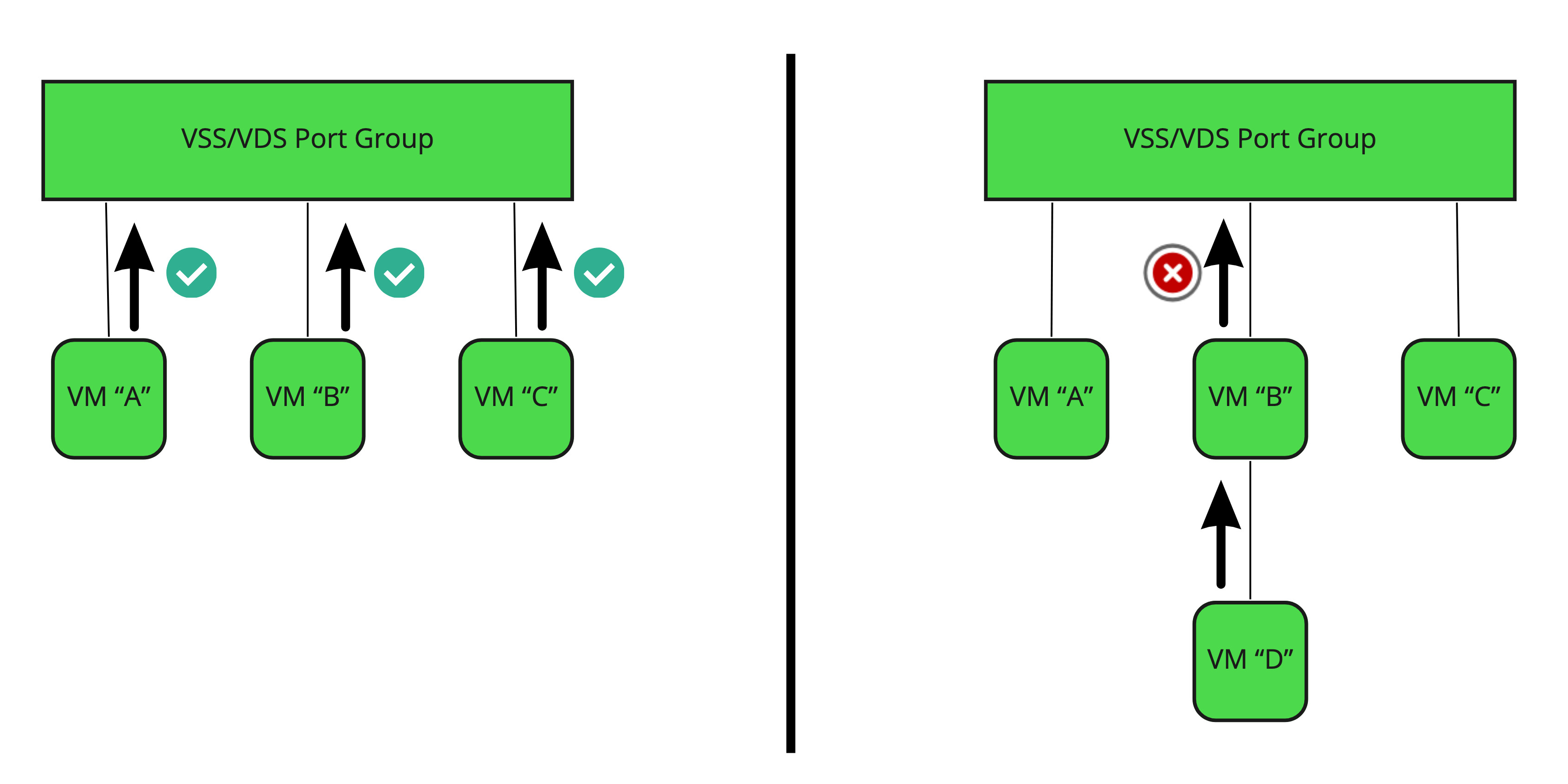
Above is a conceptual breakdown of how this feature works when set to ‘Reject‘. On the left, VMs “A”, “B”, and “C” have their vNICs attached to a VSS/VDS port group. Any traffic that originates from these VMs should be using the MAC address of their vNIC. As such, any frames sent from these VMs will be allowed, as the source MAC address of the frame will match the vNIC MAC address that the VSS/VDS has on record.
On the right hand side, we see the same configuration, except now we additionally have VM “D”, which is connected not to the port group, but to VM “B”; from a logical perspective, VM “B” is acting as a bridge for VM “D”. When a frame is sent from VM “D’, it’s bridged through VM “B” and then sent up to the VSS/VDS port group.
When the VSS/VDS receives the frame, it will compare it’s source MAC address (the MAC of the VM “D” vNIC) to the MAC address of the vNIC from which it was received (the MAC of the VM “B” vNIC). As these obviously do not match, this frame is discarded.
Since we need the VSS/VDS to allow frames that do not match the MAC address of the VM from which they are originating , ‘Forged Transmits‘ must be configured to ‘Accept‘.
Methods to ensure frame delivery
Now that we’ve reviewed both ‘Forged Transmits‘ and ‘MAC Address Changes‘ security settings, let’s take a look at the three previously identified options for getting frames delivered to the Edge Node VM to support bridging. Again, these three options are:
- Enable Promiscuous mode
- Create a Sink Port
- Enable MAC Learning (vSphere 6.7+)
Enable promiscuous mode
While configuring ‘Promiscuous Mode‘ to ‘Accept‘ on a VSS/VDS port group is the fastest way to get your bridge up and going, it comes at the greatest performance impact. By setting this security option to ‘Accept‘, what you are doing is ensuring that every VM that is attached to this port group on a host will see all of the traffic that crosses it , regardless if the traffic is destined for that VM.
So, while this does solve the problem of making sure that traffic from the VLAN side of the bridge is delivered to the segment side, every other VM on the same host on this port group will now have to deal with needlessly receiving frames that they will then drop.
An important thing to note about Promiscuous Mode is that frames will be replicated to all other VMs attached to the promiscuous port group on the same host, but your physical switching environment will prevent a given frame from being sent to all of the ESXi hosts that are part of this VDS.
Ultimately, Promiscuous Mode works; it’s just not efficient and has the potential of negatively impacting other VMs.
Note: If you intend to use Promiscuous Mode to support NSX-T bridging, its a best practice to enable the ‘Net.ReversePathFwdCheckPromisc‘ system setting on any ESXi host upon which a bridging NSX-T Edge Node may reside. You may read more about configuring the feature here, which details enabling the configuration via ‘esxcli‘.
This can also be enabled on an ESXi host by selecting the target ESXi host in vCenter, and going to ‘Configure -> Advanced System Settings‘ (under the System header). Here you can configure the ‘Net.ReversePathFwdCheckPromisc‘ setting with a value of “1” to enable the feature.
Create a Sink Port
A “sink port” for a VSS/VDS is a configuration where a port is configured to receive any frames destined for MAC addresses that the VSS/VDS does not know. As previously stated, traffic destined for the segment side of a bridge possesses destination MAC addresses that the VSS/VDS does not know. By utilizing a sink port, any traffic with an unknown destination MAC is sent to the vNIC of the Edge Node VM on the VSS/VDS, which is then bridged appropriately.
The configuration of a sink port is a bit involved, as you must make configuration changes to the VSS/VDS via the Managed Object Base (MOB). The instructions for doing so on a VDS (as well as full steps on enabling Promiscuous Mode) may be found here.
Enable MAC Learning (vSphere 6.7+)
Beginning in vSphere 6.7, the VDS (not the VSS) can enable MAC learning. Much like a physical switch, the VDS can now learn the MAC addresses of frames that traverse a VDS switch port. This means that traffic destined for a VM on a NSX-T segment will be sent to the Edge VM interface that is attached to the VLAN, without needing to utilize a promiscuous mode or a sink port.
There’s no simple way to enable MAC learning on the VDS at present. William Lam has an excellent blog post on the topic here and he even offers some powerCLI scripts to make the process as painless as possible.
Bridging on a NSX-T 2.4+ N-VDS host
So far, we’ve exclusively focused on bridging using an Edge Node VM that resides on a host that is using a VSS/VDS. However, if NSX-T is already installed, the Edge Node VM may reside on a hypervisor that is using an N-VDS rather than a VSS/VDS. An N-VDS is a virtual switch owned and managed by NSX-T. It is common for vSphere environments if: 1) the deployment is pre-NSX-T 3.0 or 2) the deployment is NSX-T 3.0+ but the hypervisor is pre-vSphere 7.0.
In this scenario, the VLAN side of a bridge is provided by an NSX-T VLAN segment, whereas before the Edge Node VM had it’s interfaces attached to a VDS port group. These same interfaces (‘eth0‘, ‘Fp-eth0‘, and ‘Fp-eth1‘ below) will be attached instead to a NSX-T VLAN segment.
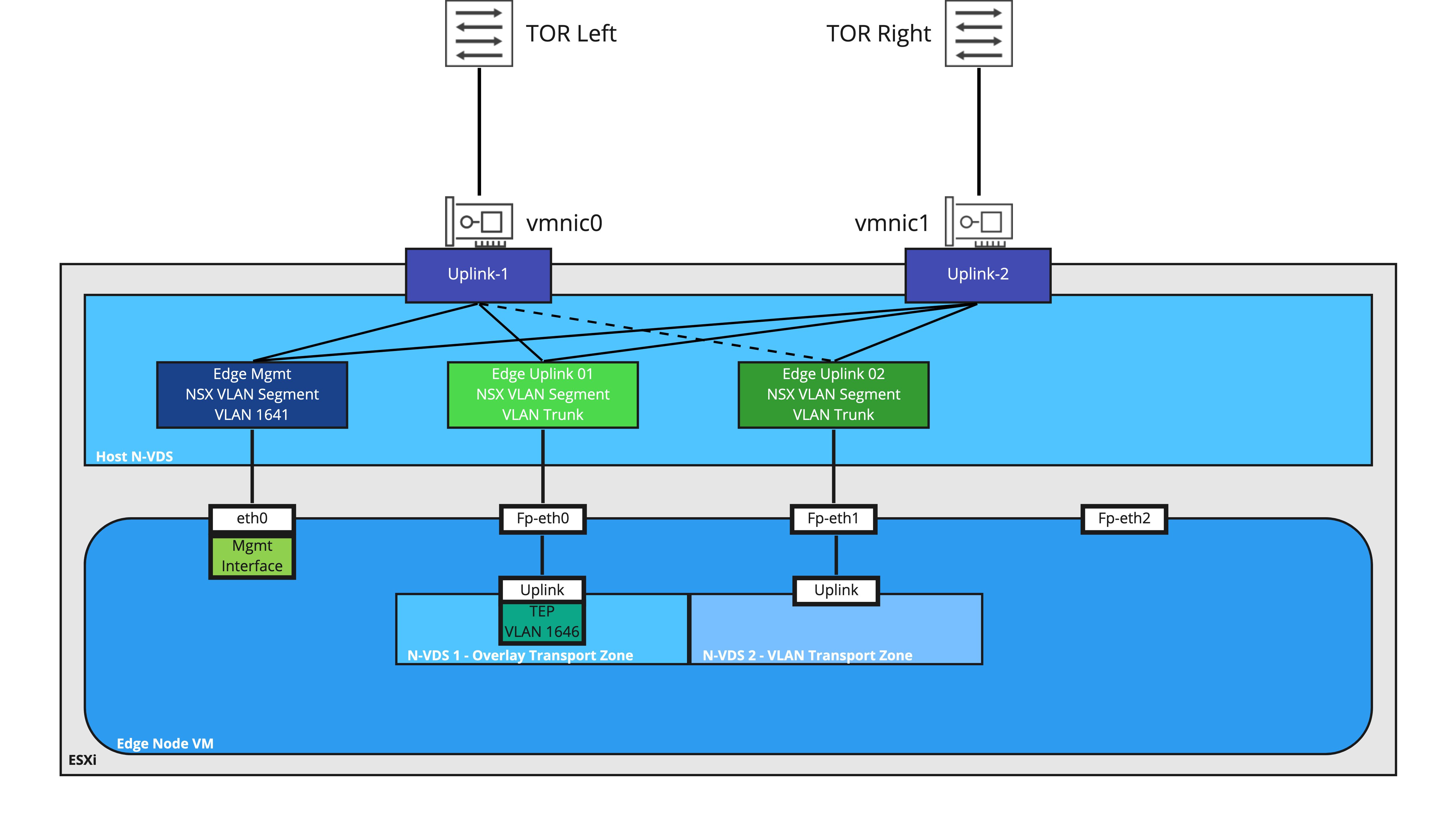
Like a VSS/VDS port group, an NSX-T VLAN segment requires a method to ensure that frames destined to the NSX-T overlay segment are sent to the Edge Node VM. To accomplish this, an NSX-T segment can easily enable MAC Learning by creating and using a MAC Discovery profile.
To create a MAC Discovery profile in NSX-T 3.1, go to Networking > Segments > Segment Profiles. Click Add Segment Profile and select MAC Discovery.

For bridging purposes, name the profile, enable the ‘Mac Learning’ toggle, and hit Save. Once created, in Networking > Segments, select Edit on the target VLAN segment, then under Segment Profiles choose the MAC Discovery profile you created in the MAC Discovery drop-down, and click Save.

So how do I actually create a Bridge in NSX-T?
There’s still a few additional topics we’d like to cover before getting to the actual steps of creating a bridge. The intent of this series is not only to provide configuration options, but also available decision points and the accompanying data to ensure you are making the best choices for your environment.
Please come back for Part Four in this series, where we will take a deeper look at Transport Zones, and how you may choose to leverage them for your bridging needs.
 LumberjackWizard